QuickAccounting Docs

  • Overview
  • About QuickAccounting
  • Changelog
  • Installation
  • Server Installation
  • Local Installation
  • Backend Guide
  • Dashboard
  • Inventory
  • Configuration
  • Sales
  • Purchase
  • Accounting
  • More
  • Requirements for QuickAccounting
  • Support
  • Thank you
Find us on Skype (Thenext Coders)
Find us on WtsApp No: +9779869414235

Thank you for purchasing QuickAccounting. If you have any questions that are beyond the scope of this help file, please feel free to inform us. We will be thankful to you if you can leave an inspirelational review for us.

QuickAccounting

QuickAccounting - Business Accounting & Inventory Management Software

Quick Accounting Software is the best and easiest web-based financial management software built for all type of business , companies, organization. It focuses on easy operation and informed management decision making. QuickAccountin captures the business flow and anyone with basic business concept can use the system with minimal training. In most of the cases no debits or credits are required – knowledge of business is enough to correctly record business transactions. The software is build with enterprise grade quality and security. QuickAccounting is built with C#, .NET 6, Blazor Server.

Changelog

We have launched our version 1.0

Server Installation

The Blazor Server framework has a few system requirements.

you will need to make sure your server meets the following requirements:

Note: If you are having any issue to install the application feel free to inform us we will try to assist you with the installation :)

  • Extract the QuickAccounting-V1.0.zip file
  • You will get QuickAccounting Folder
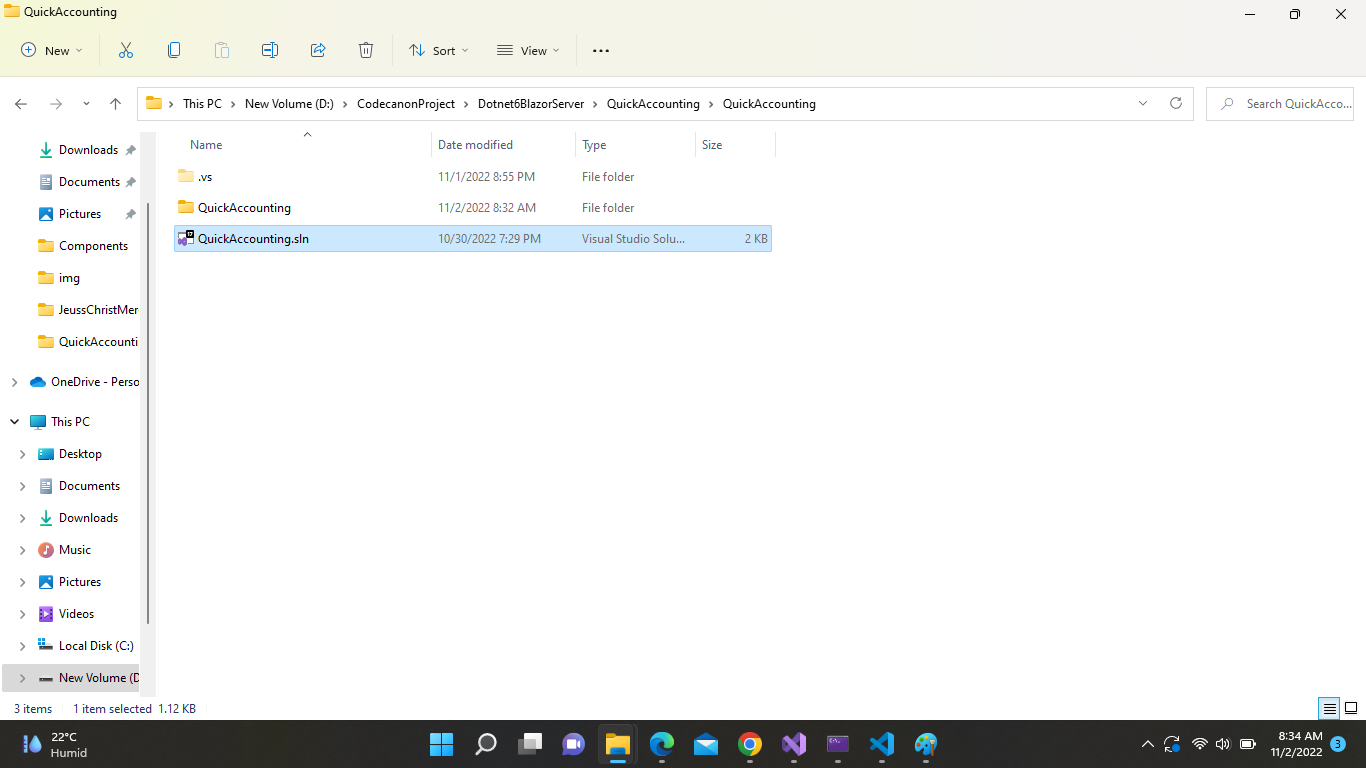
  • Open QuickAccounting folder. Then you will get QuickAccounting.sln file
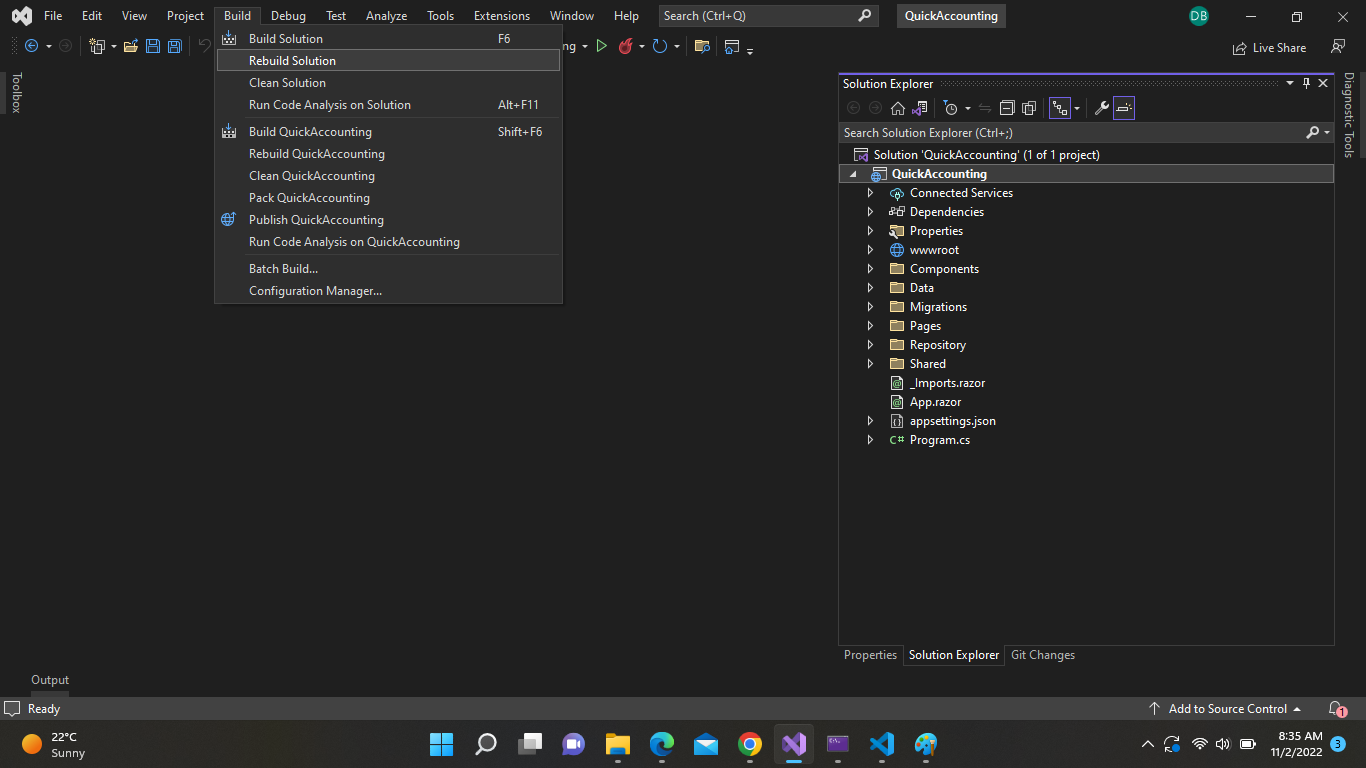
  • Clean And Rebuild Solution
  • Publish
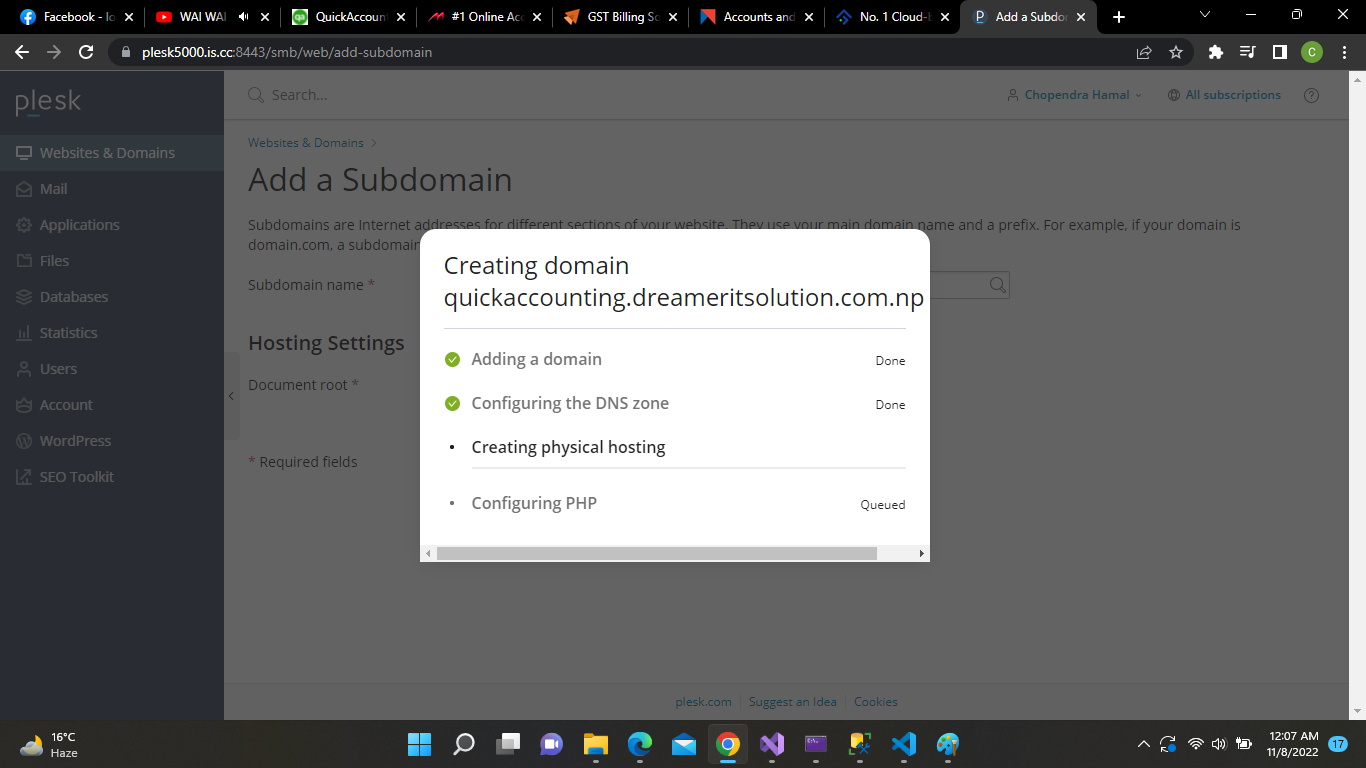
  • Go to plesk server Add your domain name example: (www.yourdomain.com)
  • Add your domain name example: (www.yourdomain.com)
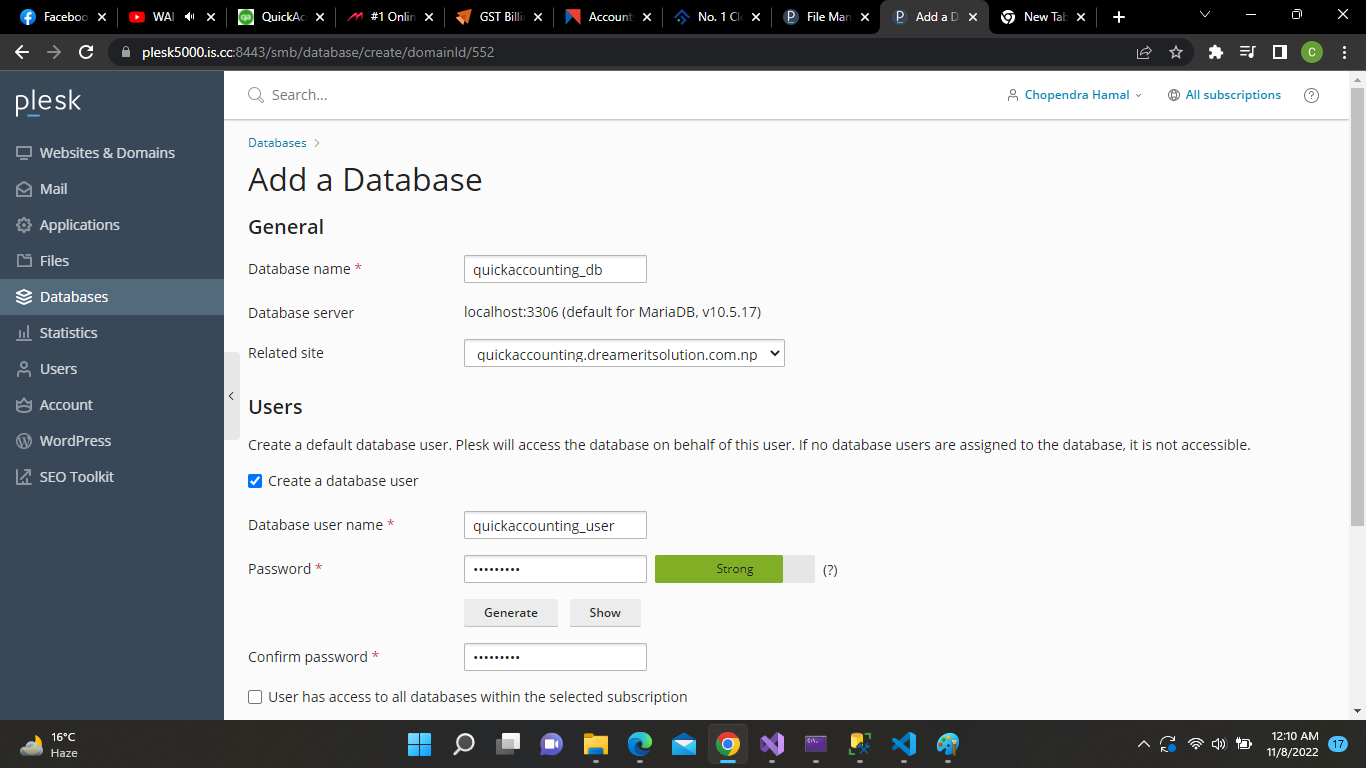
  • Add a Database
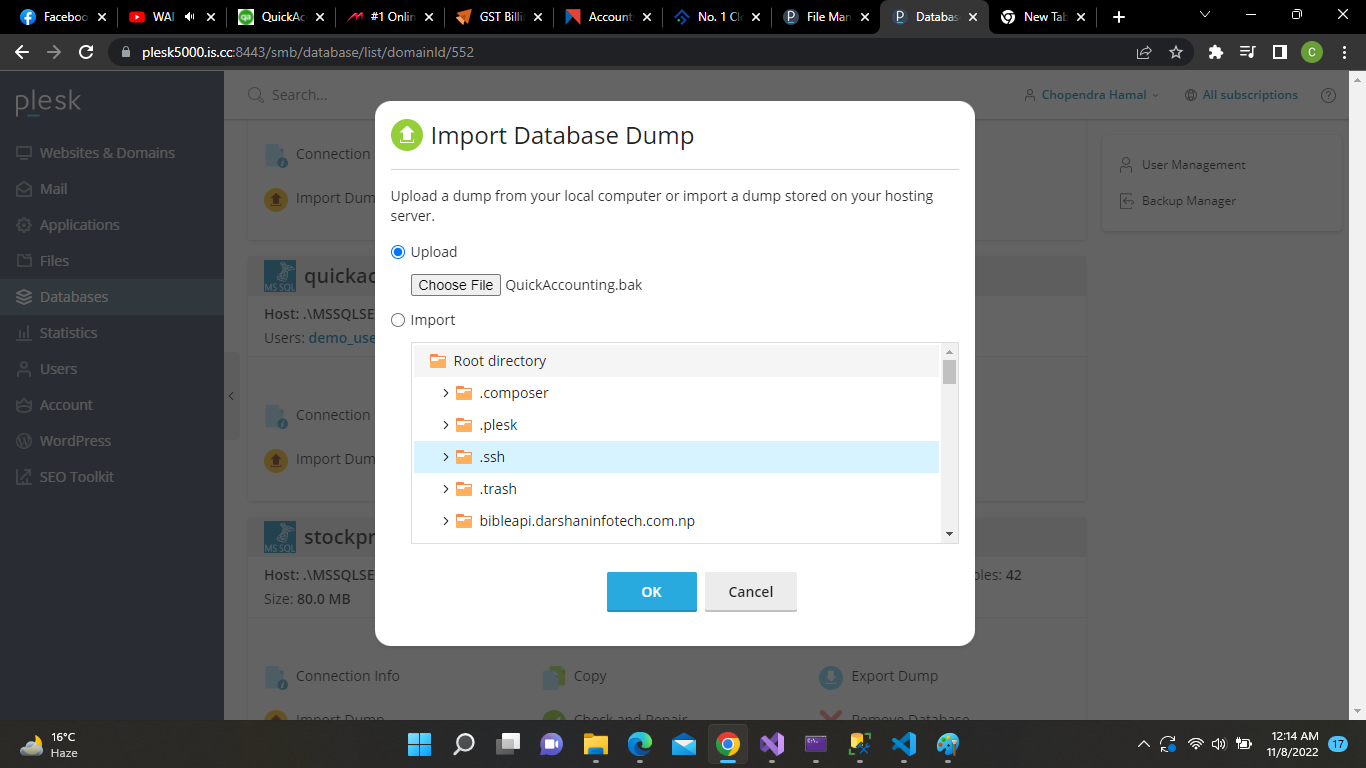
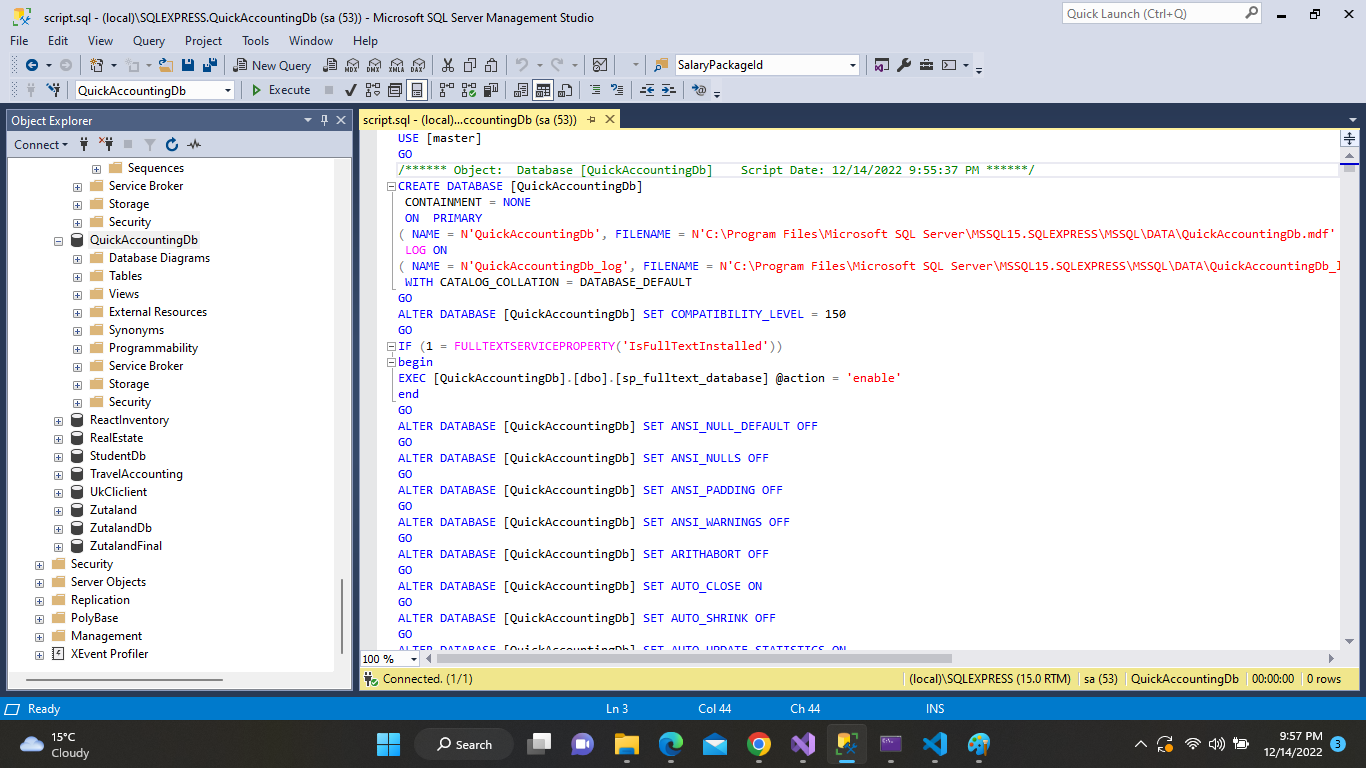
  • Import Database
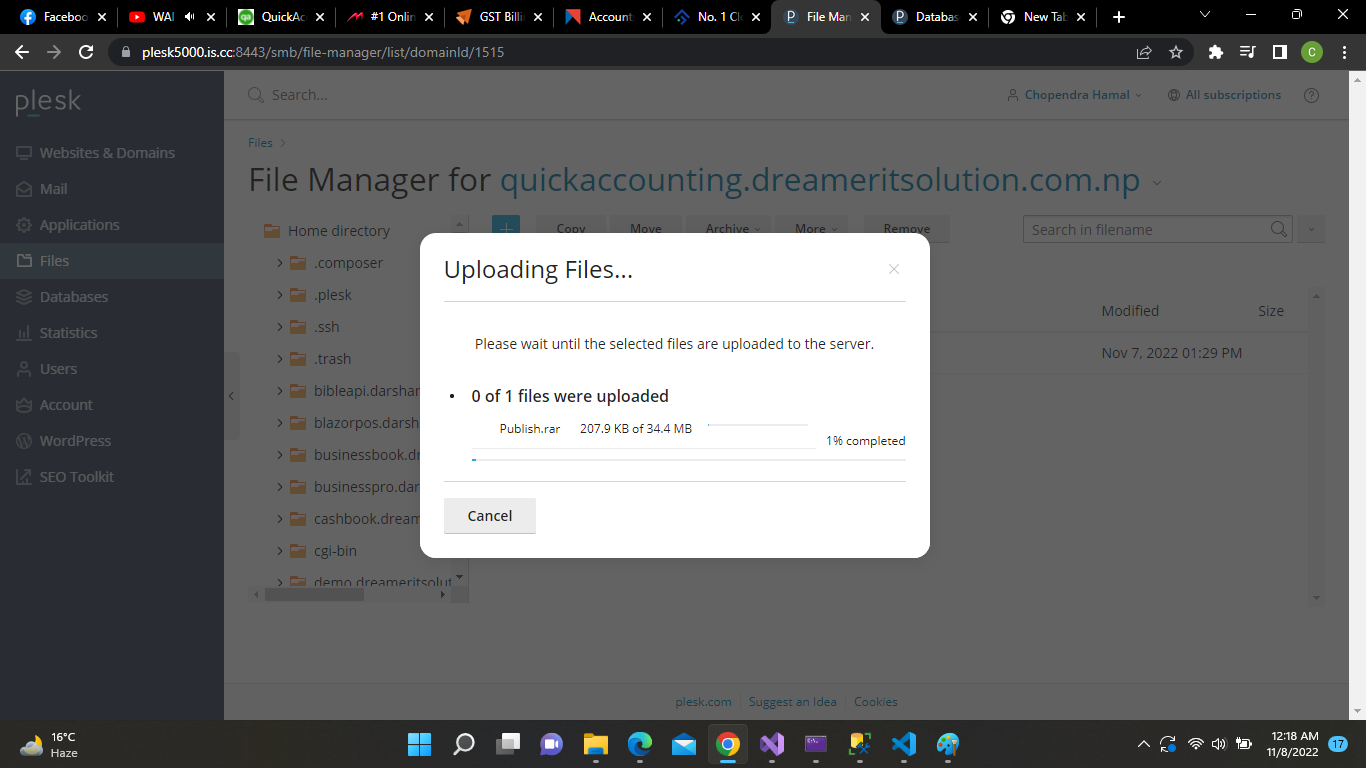
  • Upload Project
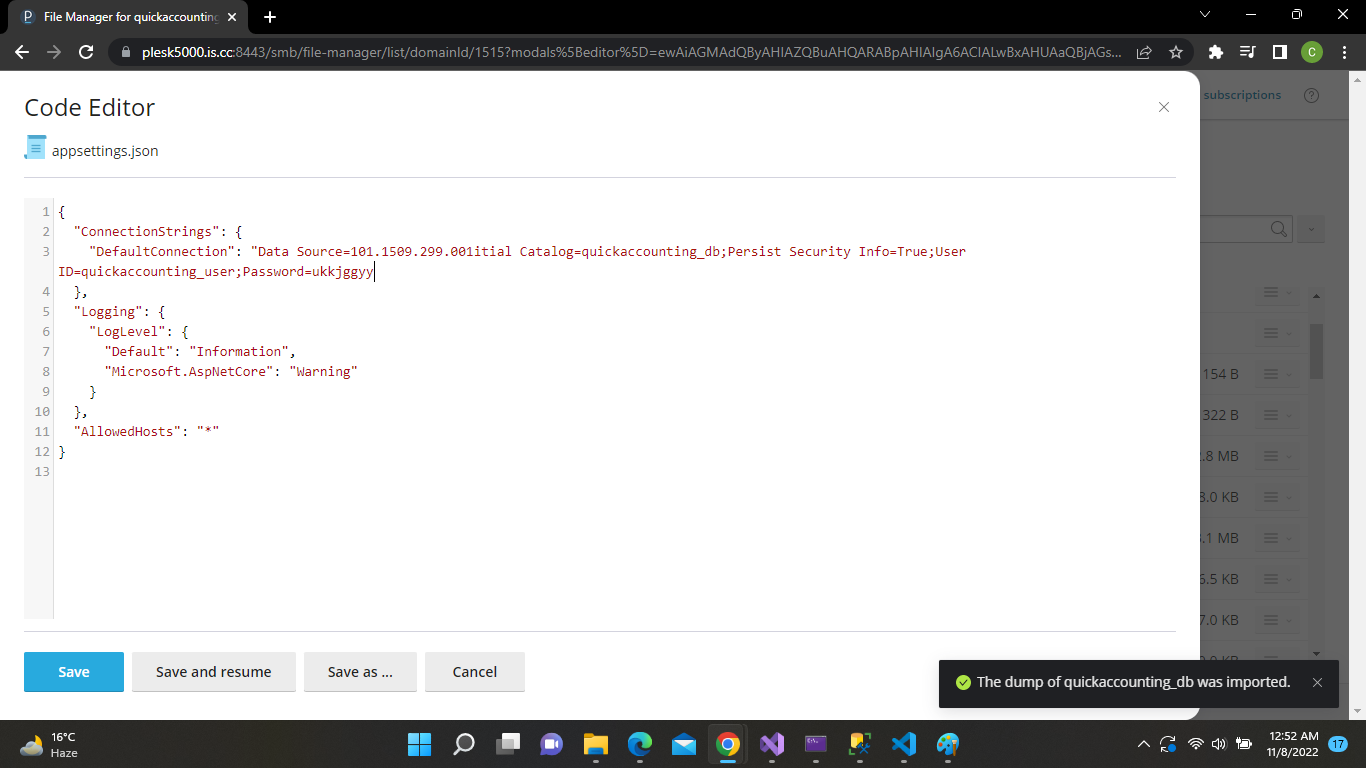
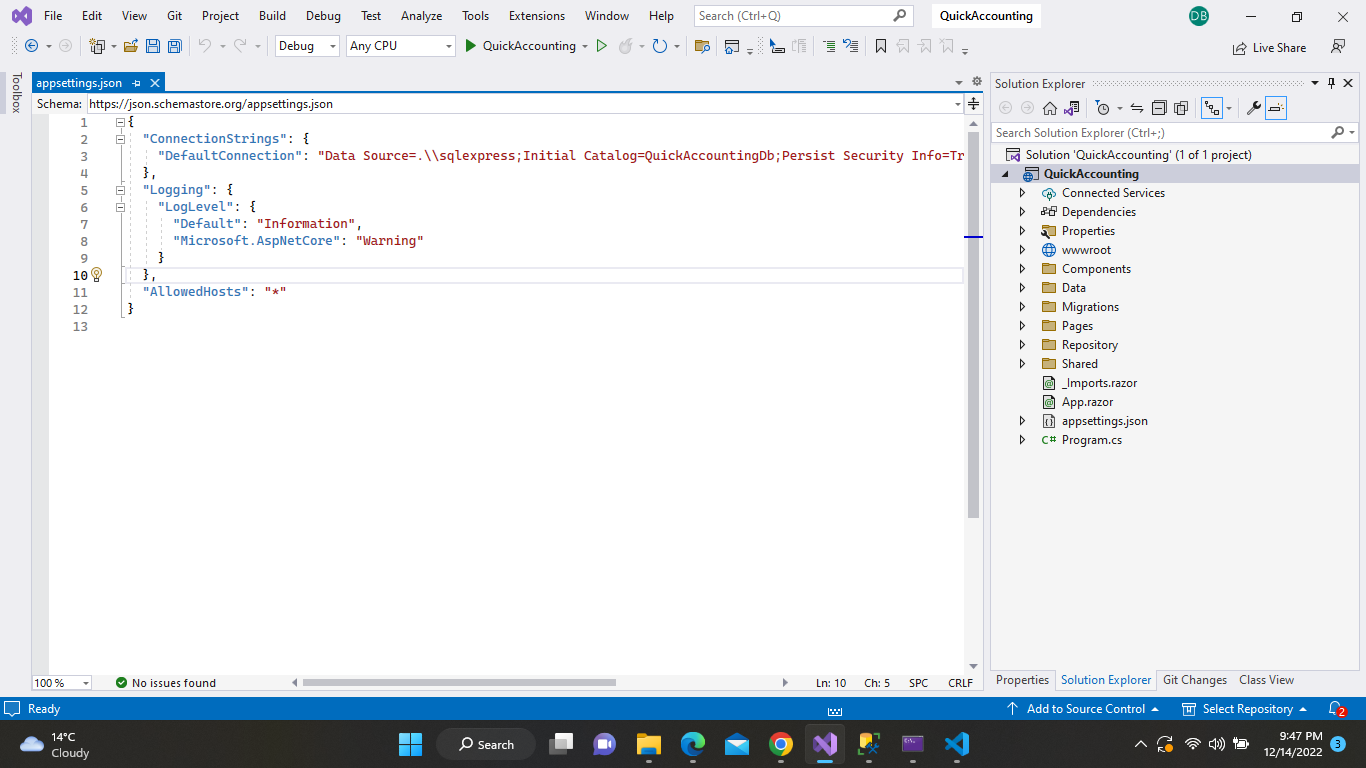
  • Change Connection appsettings
  • Installation successfully done…

Local Installation

The installation of the QuickAccounting is super easy and similar like other Dotnet and c# based systems. Please follow the below steps to install QuickAccounting on your server.

  • STEP-1
  • STEP-2
  • STEP-3
  • STEP-4

First of all, unzip the downloaded source code from Codecanyon. Find the folder QuickAccounting-V1.0 and Extract QuickAccounting-V1.0 inside it find the folder

You will get QuickAccounting Folder. Then you will get QuickAccounting.sln file

Clean And Rebuild Solution

Change appsettings.json • ConnectionStrings tag as below: - Server: your server name - Database: your database name - User id: your username - Password: your password


1. Open Microsoft Sql Server Management Studio 2. Open script.sql 3. Create Database AccountServer 4. Execute Script

Now, Browse your application

Note: If you are having any problem with the installation process then feel free to contact us(chopendra2043@gmail.com) and we will help you with the installation.

Dashboard

Modern & interactive dashboard that displays all insights of your business at one place.

Inventory

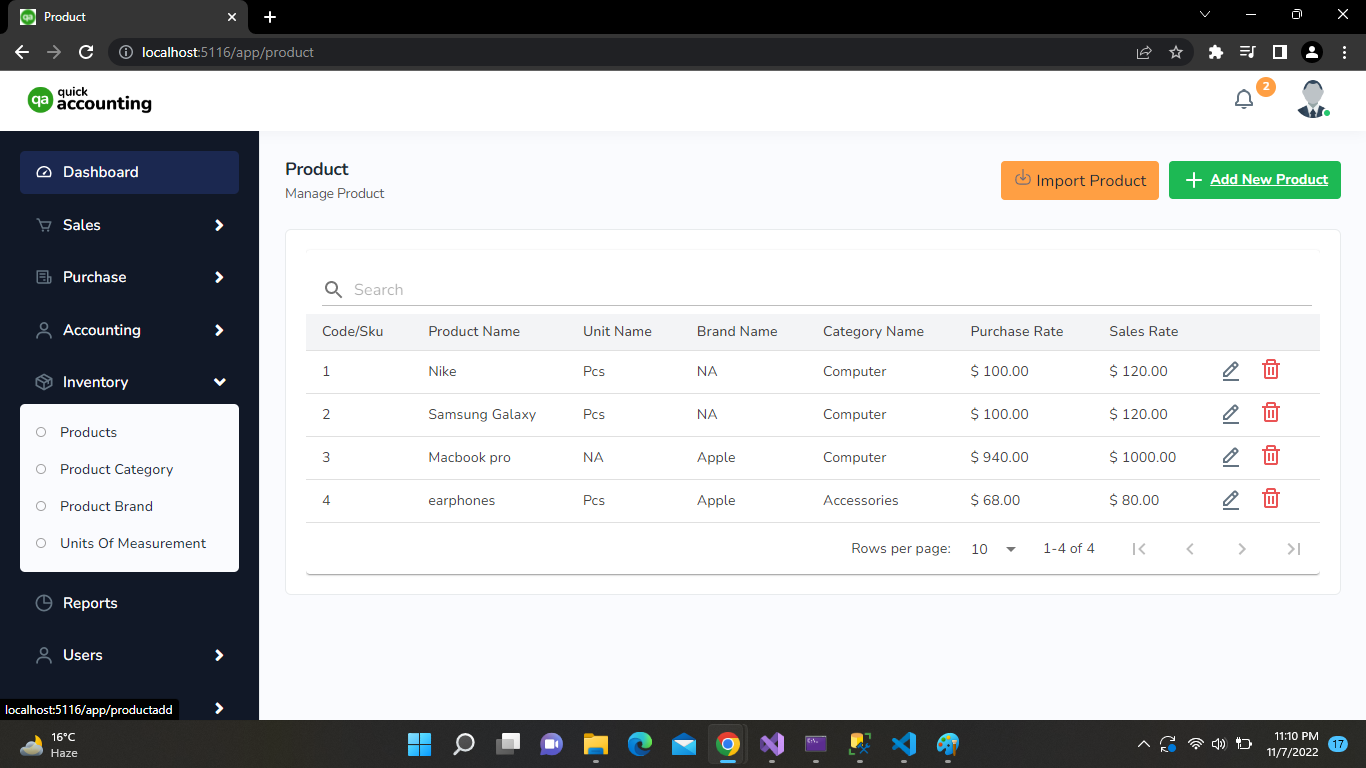
Not just invoicing, the billing software is also capable of managing the business inventory. The inventory management software helps small and medium enterprises to manage their stock in a few clicks. Easy entry of new stock, simple product categorisation, a centralised dashboard view, low stocks alerts are the key features offered by the inventory management software.The inventory management software allows businesses to have a neatly organised product catalogue. Using the accounting software, add all the new items with all the required details, including product, name, image, category, item code, description, stock quantity, batch number, selling price, manufacturing date, MRP, and wholesale price.The inventory software generates reports to monitor the overall inventory performance. View the reports on stock summary, low stock and item sales.

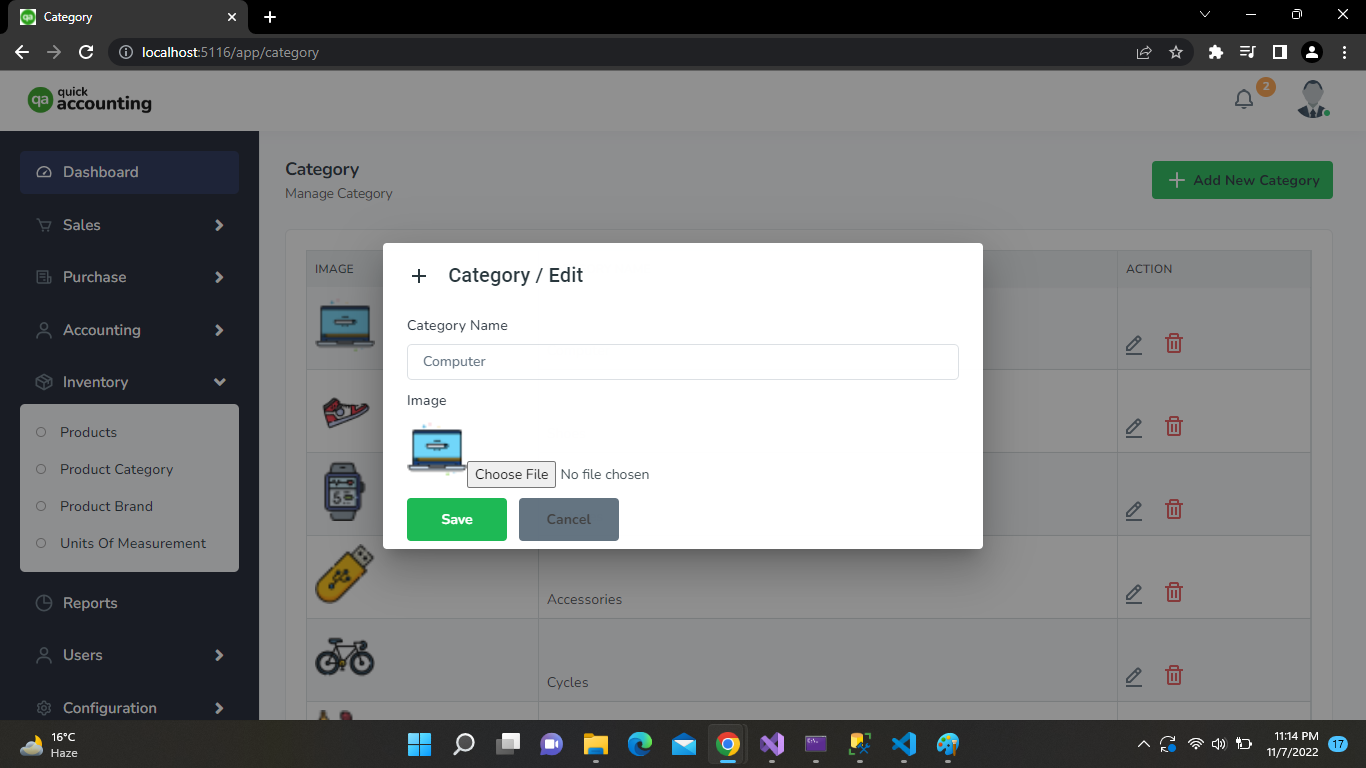
Manage Category:

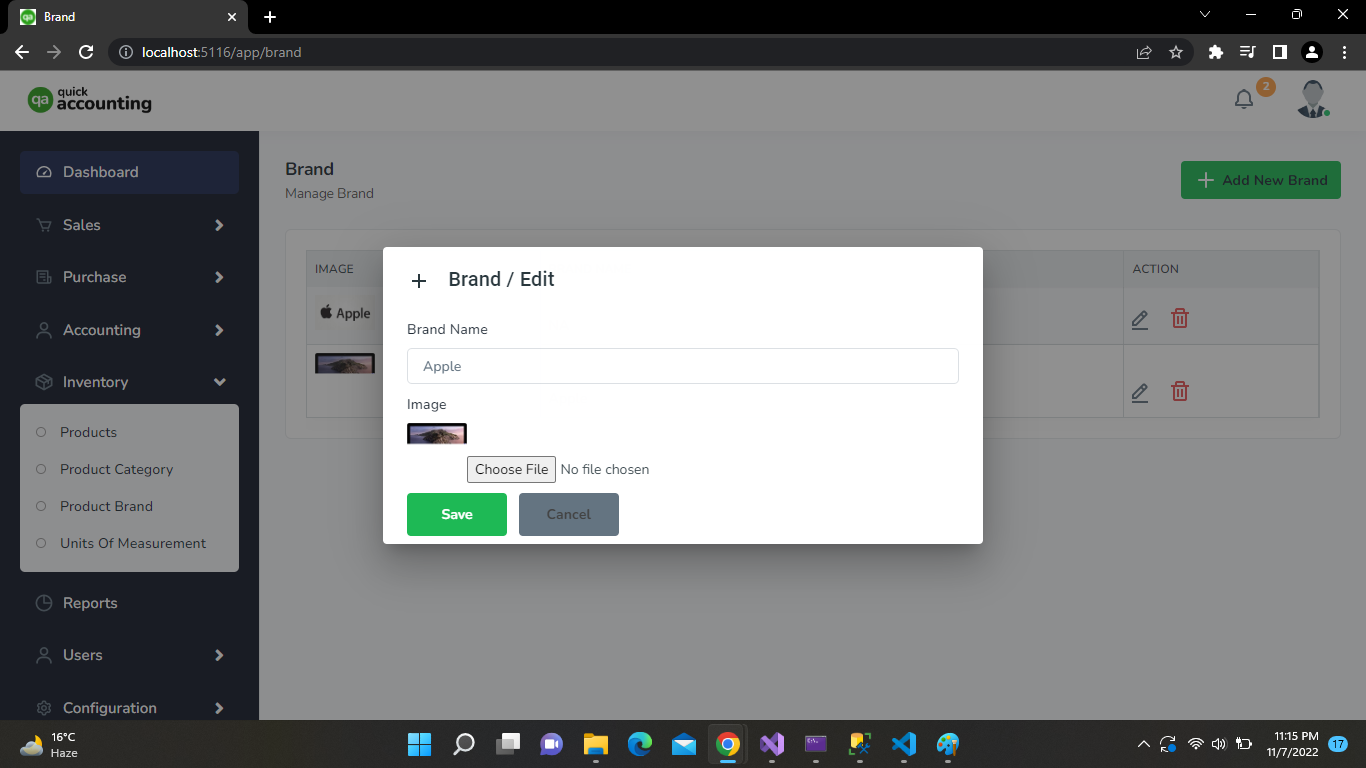
Manage Brand:

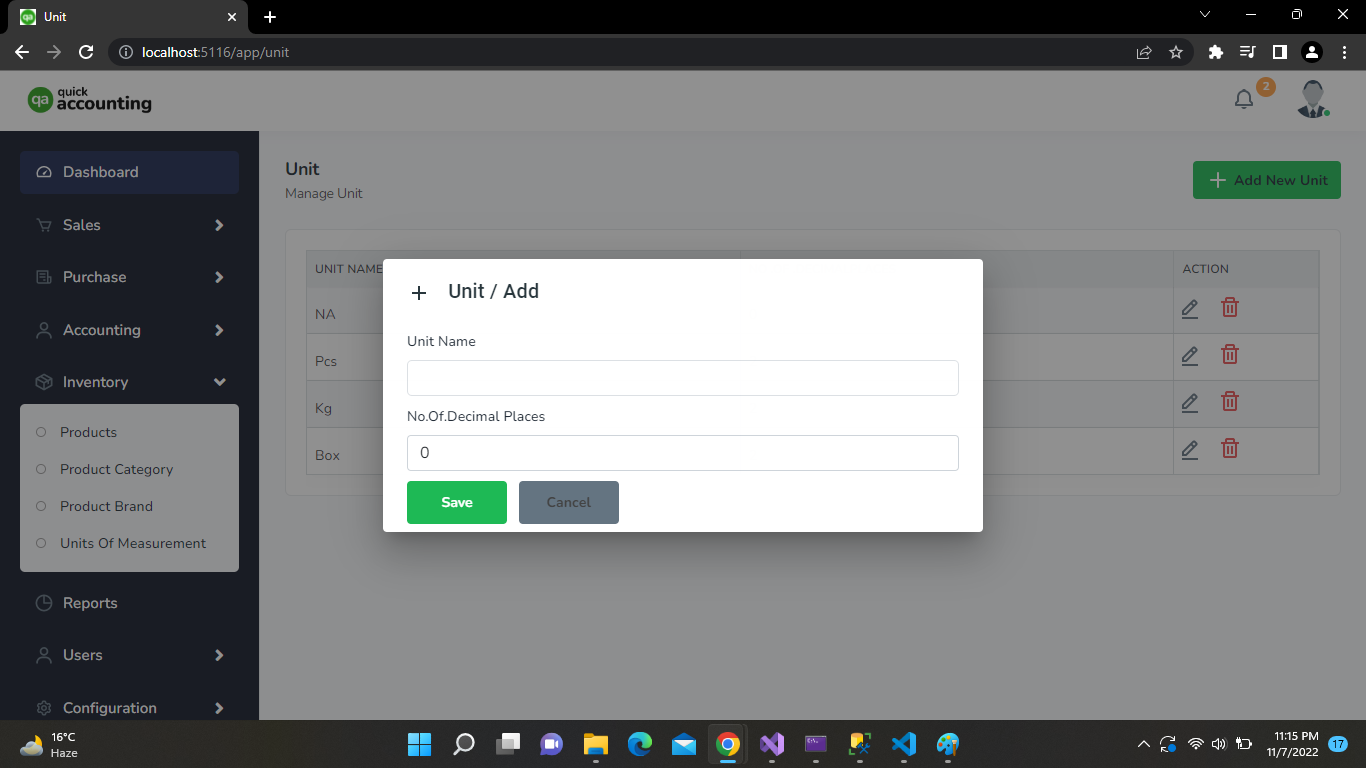
Unit:
Units are the used for the measurement of product. You can create units from Settings → Unit. After creating units you can assign them to products. Following fields is required to create units :

Configuration

You can create Apps Setting, Invoice Setting, Currency and Tax from Configuration


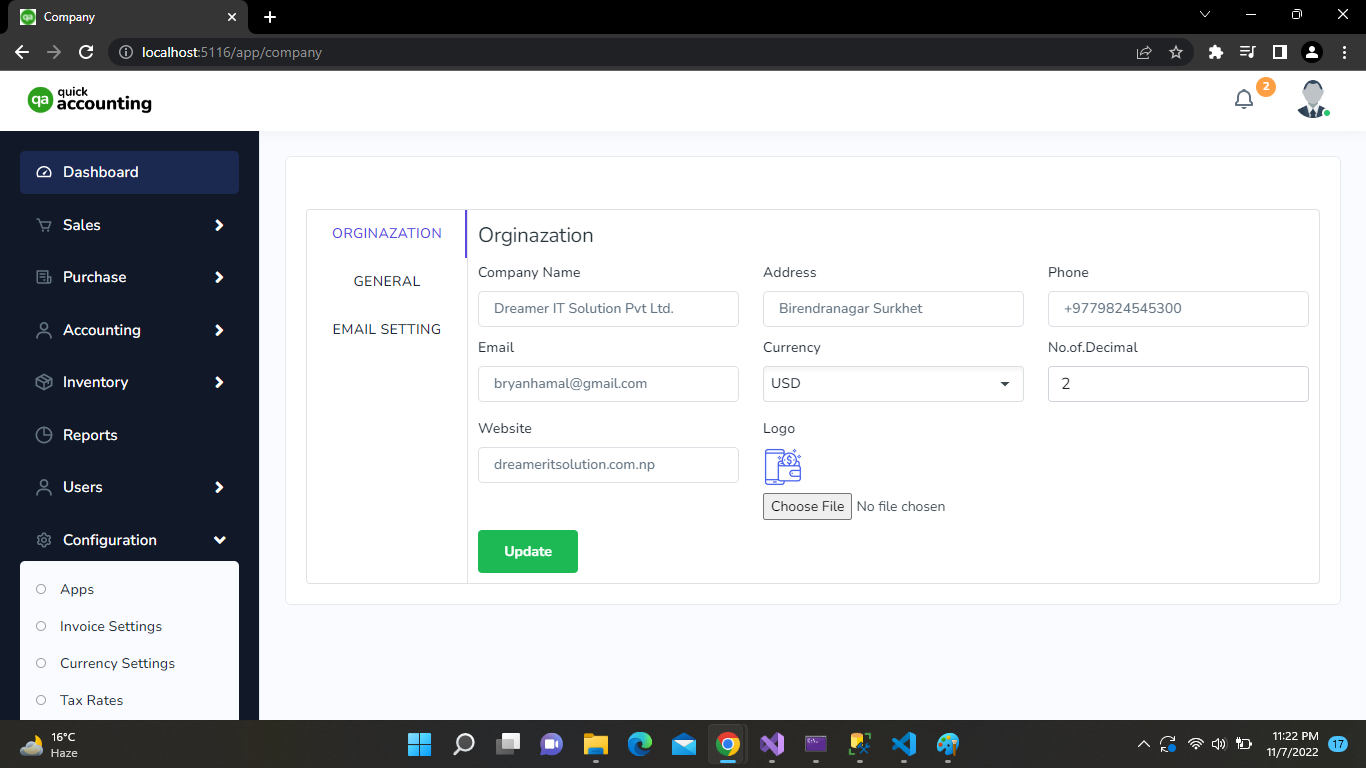
Apps

Configuration → Apps menu.
logo


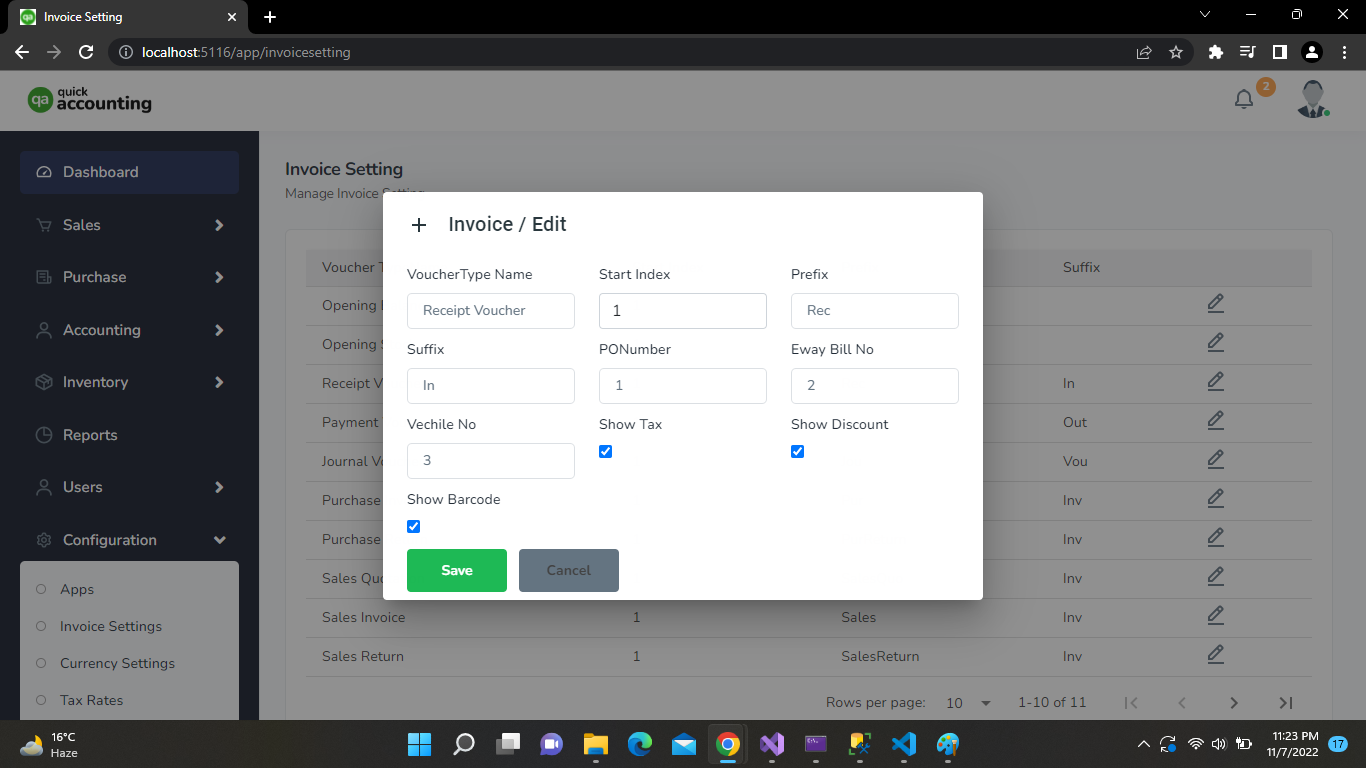
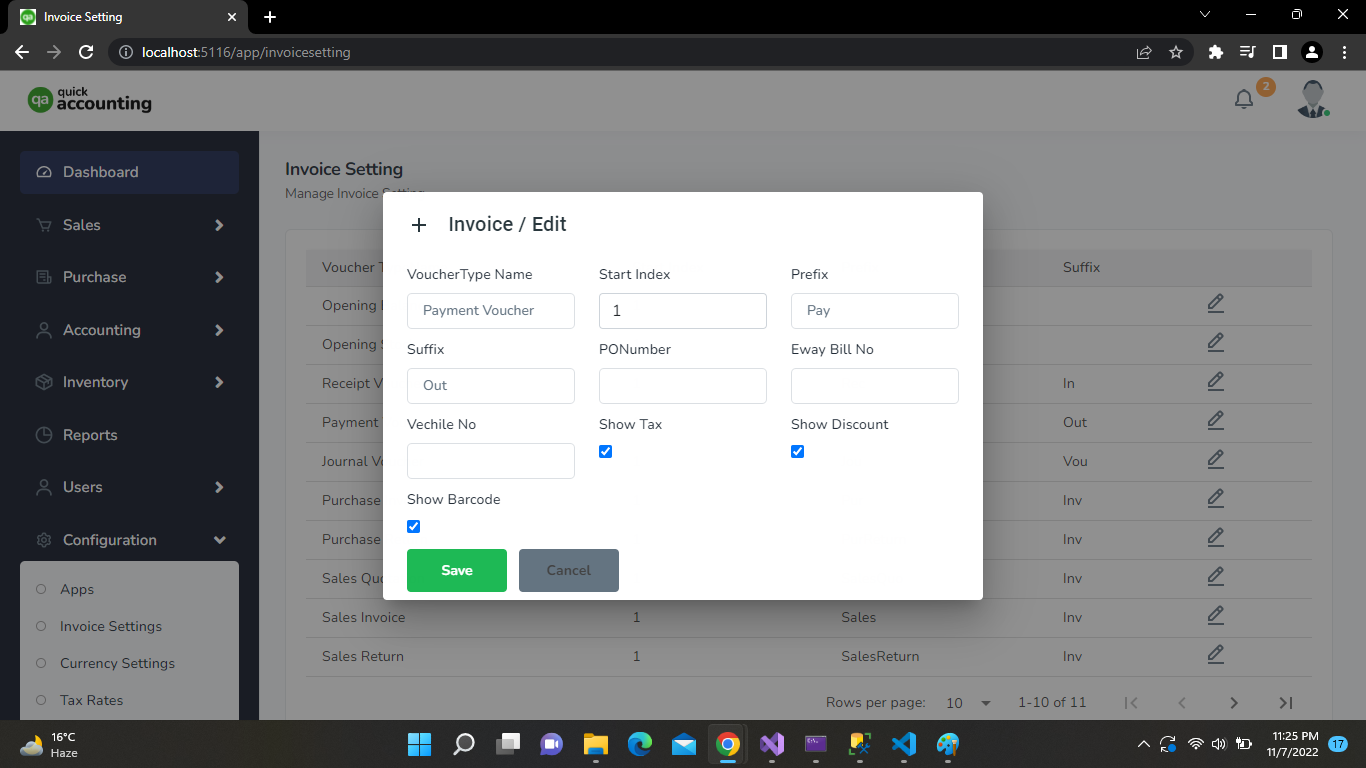
Configuration → Manage Invoice Setting menu.
logo


Configuration

Configuration → Manage Currency
logo

Sales

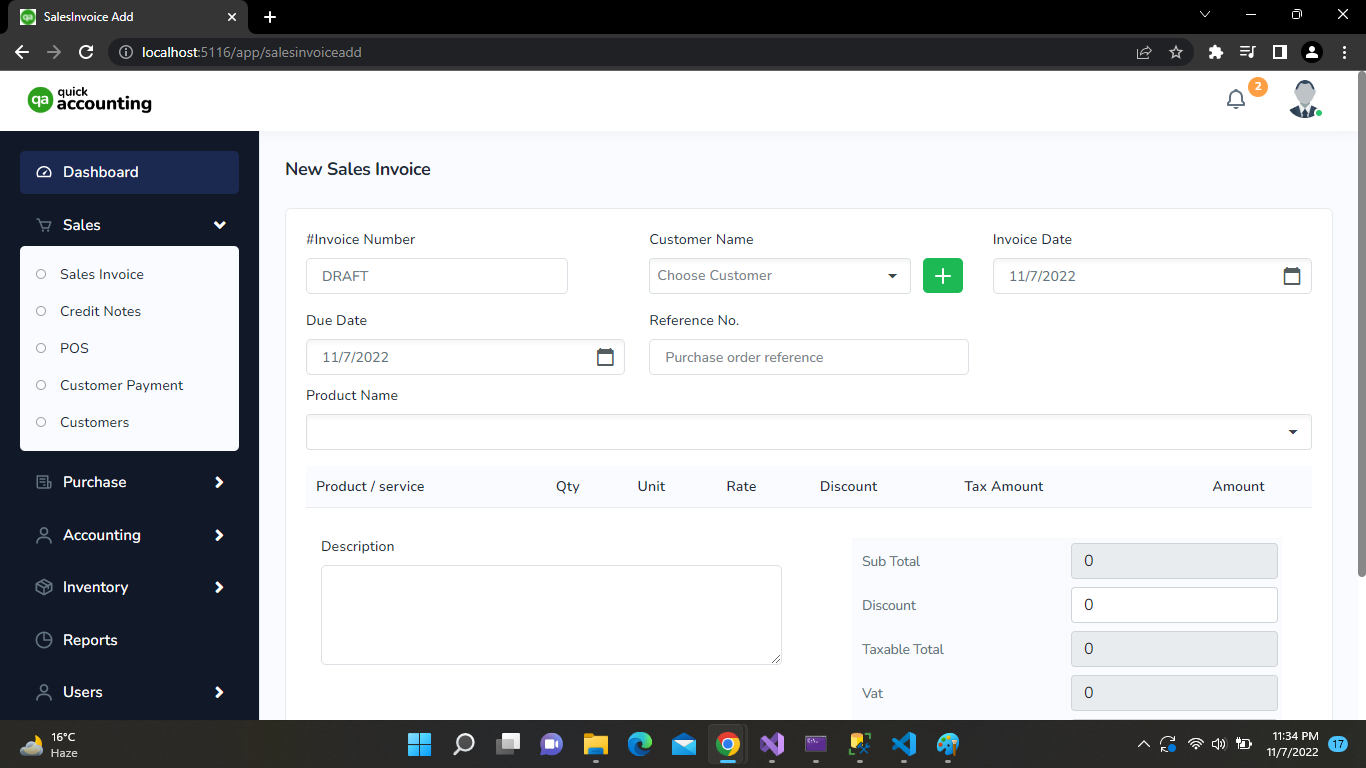
When you want to add new sale. You can do it from Sales → Sales menu. You can filter sales by party, invoice number, dates. Also you can get draft and approved sales status automatically when you add some payments to sales. Following action can be perfomed on sales : Get sales by payment status so that you can easily identify your business growth.

logo

Credit Notes

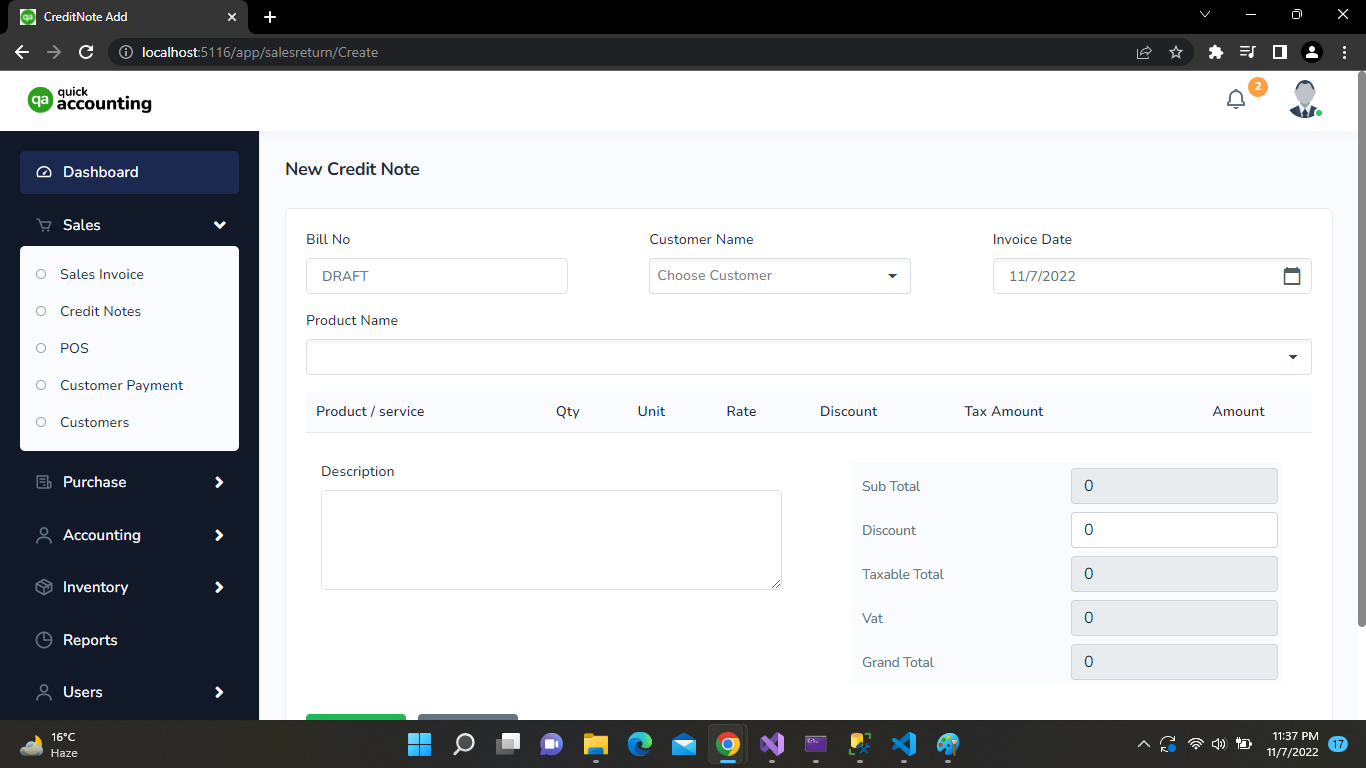
When a sale return by party then you can add it from Sales → Sales Returns menu. After return you can add payment or credit notes. Sales returns status will be automatically generated after adding payments.

logo


Purchase

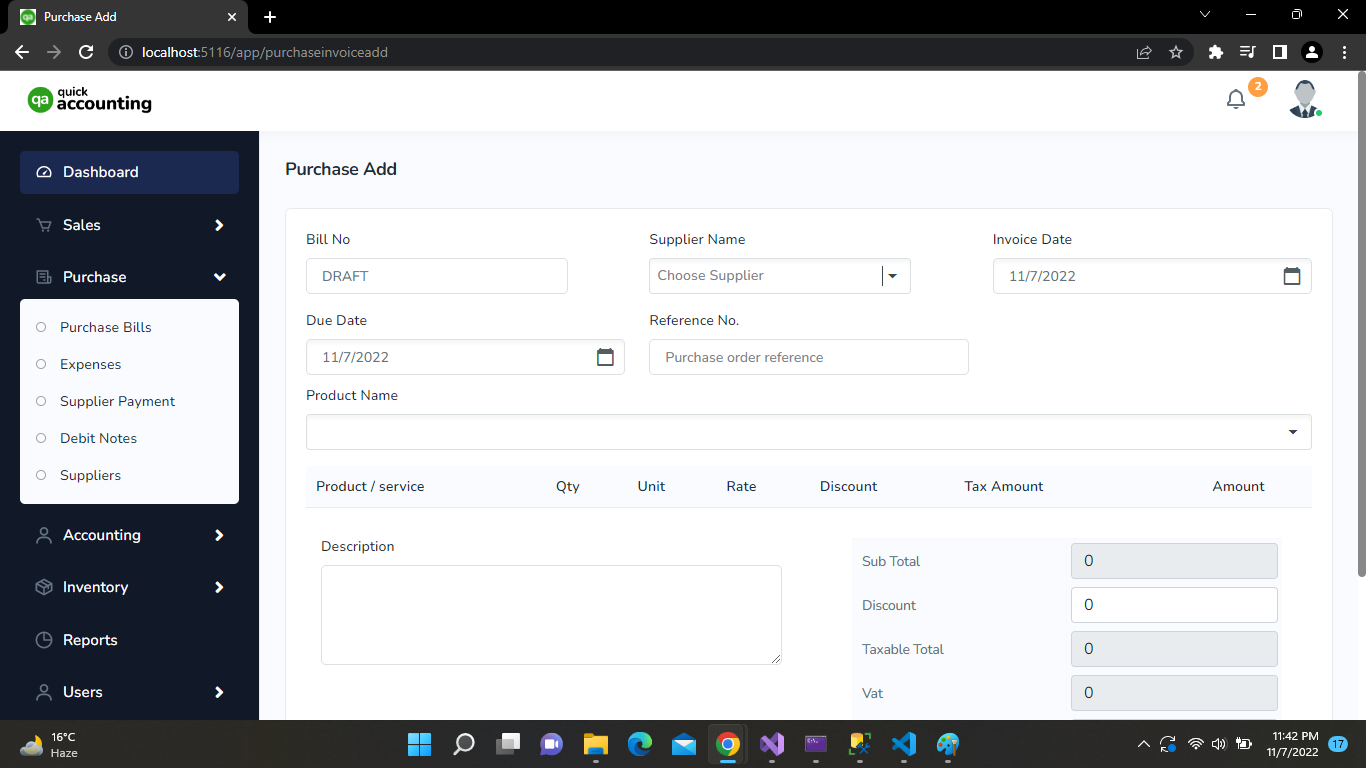
Add new purchase from Purchases → Purchases menu. Filter puchases by party, dates, invoices number. Add payment from party for purchase and payment status will automatically calculated. Following action can be perfomed on sales : Purchase → Purchase Invoice

logo


Debit Notes

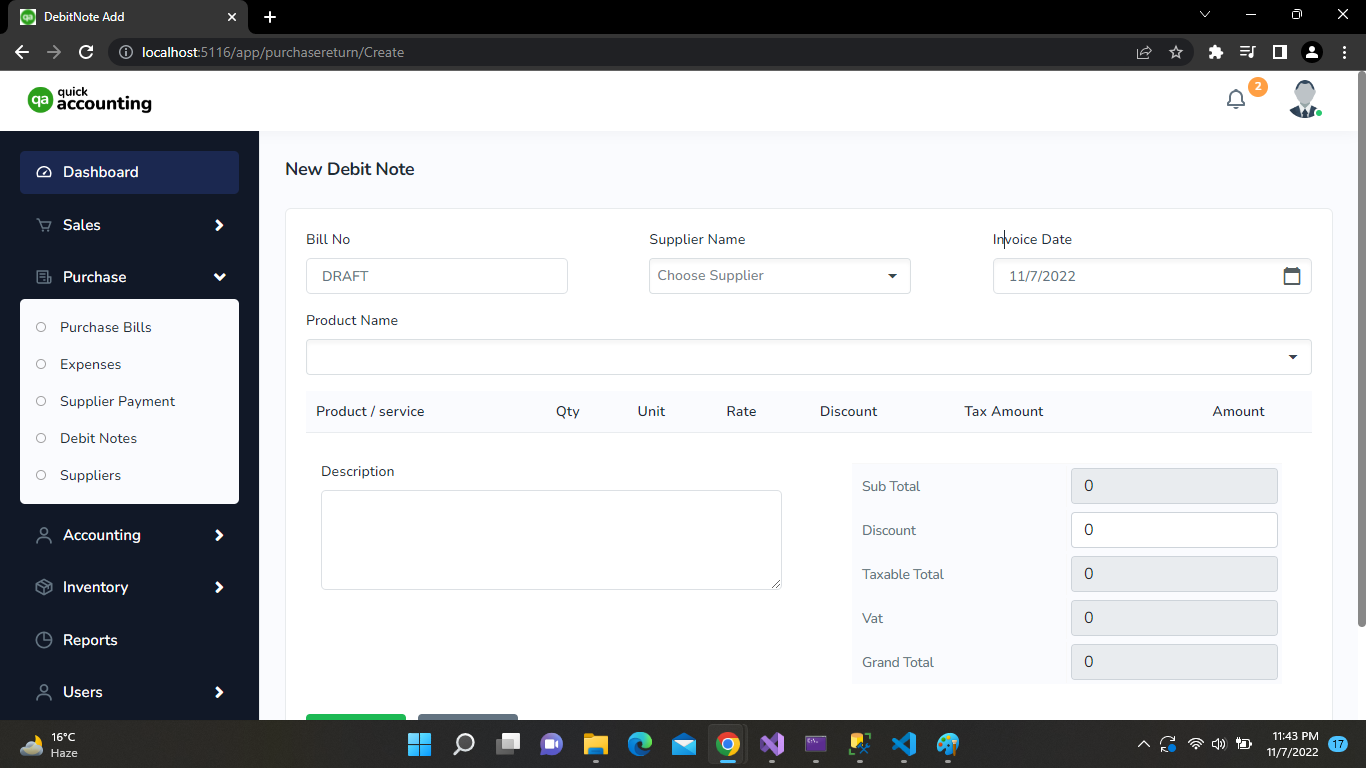
When a Debit Notes by party then you can add it from Pu → Sales Returns menu. After return you can add payment or credit notes. Sales returns status will be automatically generated after adding payments.

logo


Accounting

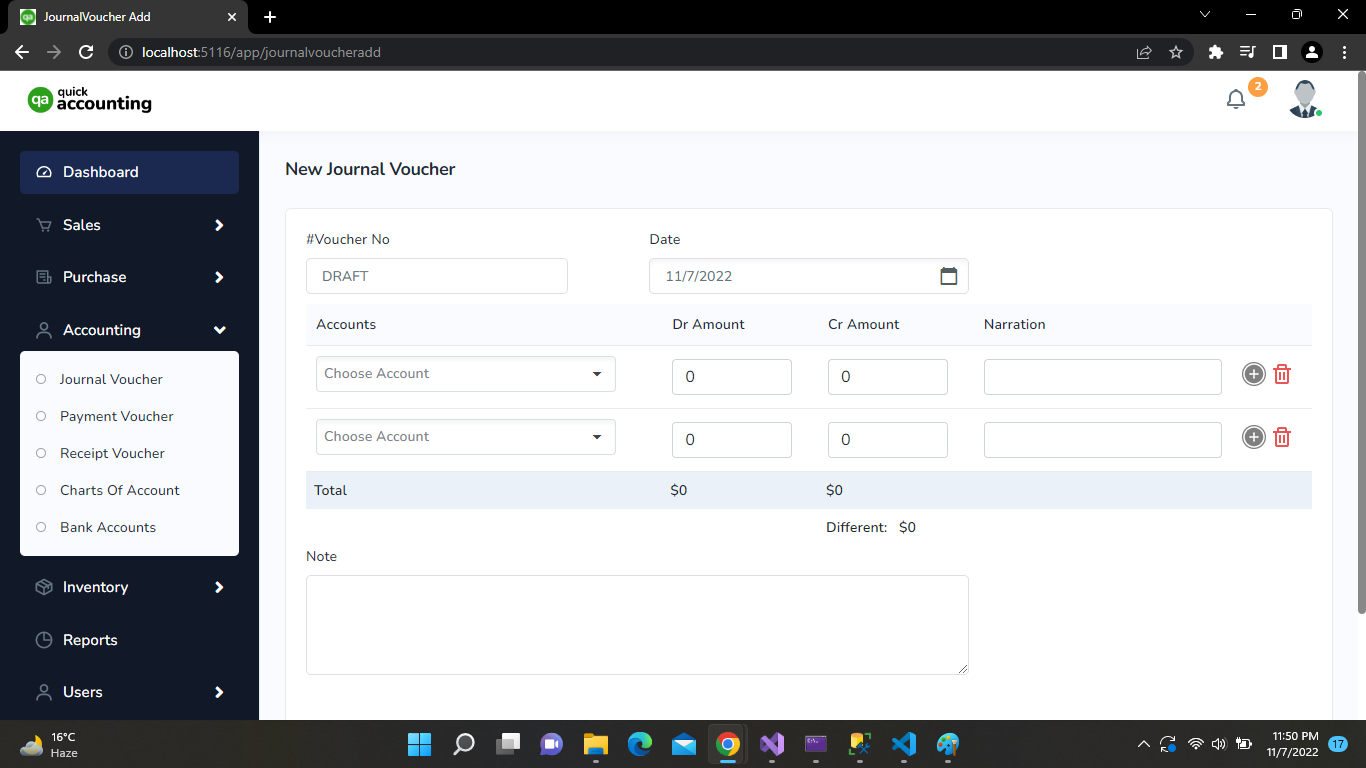
QuickAccounting online accounting software helps small business owners manage their finances more efficiently. QuickAccounting software helps track expenses, record sales & purchases, send payment reminders, and manage accounts payable/receivable. In addition, the software can track their progress and keep a check on their periodic budgets.The QuickAccounting software maintains party-wise ledgers, cash ledgers, bank ledgers, and day-wise sales/purchase ledgers. This will also help maintain regular cash flow for your business.

    logo


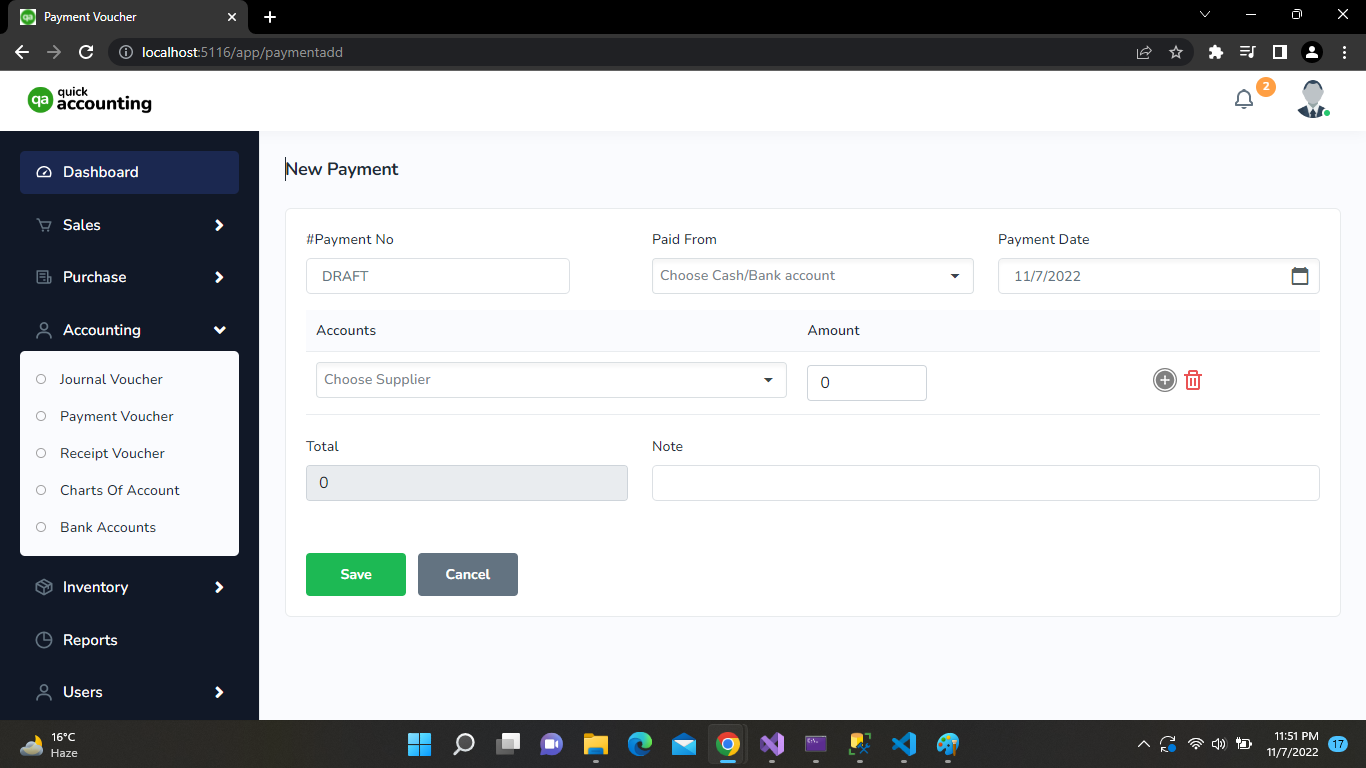
    Payment Voucher

    When a sale return by party then you can add it from Purchases → Purchase Returns menu. After return you can add payment or credit notes. Sales returns status will be automatically generated after adding payments.

    logo


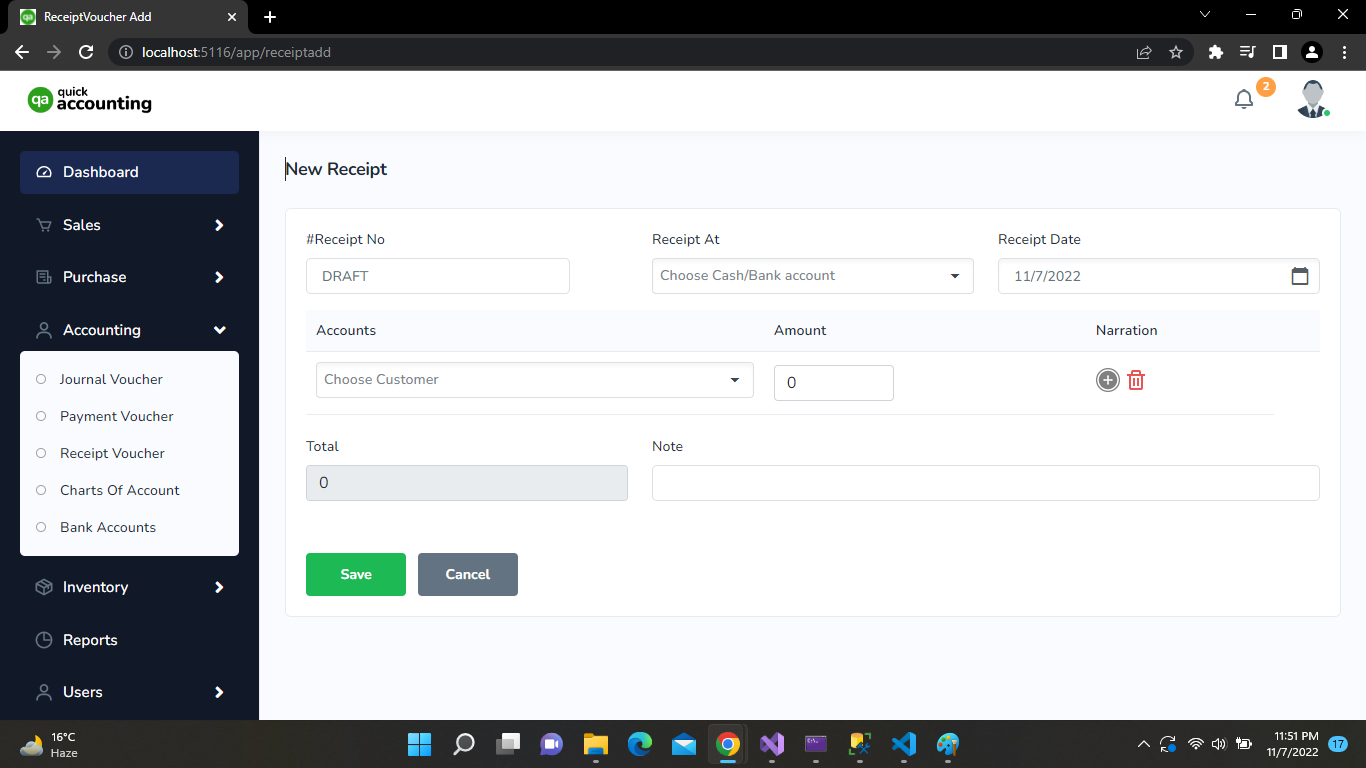
    Receipt Voucher

    You can add payment for a party from Purchases → Payment Out menu. When you add add payment it will automatically detected due invoices for selected party.

    logo

Requirements for QuickAccounting

Requirements
Download Visual Studio 2022 Download Here (Download Community Version)
Download Microsoft Sql Management Studio 2018 Download here Download Link
Download Microsoft Sql Server 2018 Download here (Download Express)

Support

If you need any kind of support or fixes in this system feel free to contact us via this mail : chopendra2043@gmail.com

Note: We are available for freelance work. So if you need any kind of modification in the system then let us know will try our best to assist you.

Thank You!

Thank you so much for supporting our work by purchasing our product! We wish you all the best with your upcoming projects and endeavours in life!

Have a great day and happy coding!

thenextcoders logo